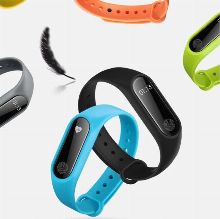
Smart watch phone, support for multiple languages, Bluetooth, IOS, Android
Please read this manual carefully for correct using the product. If you feel confused about any operating descriptions on this manual, please call us for help, thank you.
1.Notes
1.1、The company keeps the right of modifying the contents in the manual without making any notifications in advance. It is normal that some functions may vary in certain version of software.
1.2、Please charge this product for no less than 2 hours before using it.
1.3、Security code
The security code can prevent someone else from using your watch without authorization. The initial security code is 1122.For your personal information security, please change your security code and firmly remember it.
1.4、Please insert your SIM card and TF card into the side slot with the enclosed retrieve card pin.Make sure your watch is power off while inserting your SIM card and TF. As pictures:
2.2、Basic operating
1.Long press power on,when the screen is on, left drag to enter the main menu with your finger, slide the screen up or down to view the menu, long slide towards the right to return previous page.
Click the icon to choose corresponding function.
Icons description:
2.3、Watch-faces
Watch-faces and settings:
Method 1:Long press the home screen about 2 seconds to enter into the settings,switch your favorite watch-face by swiping the screen to the left or right,then confirm it.
Method 2:Select your favorite watch-face by setting steps as“Settings—Clock—Clock type”.
2.4、Themes
Select your favorite theme by setting steps as“Settings—Display—Wallpaper”.
3.Detailed use instructions
3.1 Download Fundo Wear Apps for your phone
Firstly, scan the built-in QR code of your watch with the QR code scanner of your phone, enter into the Apps download page automatically, or visit the URL http://c3.cli.im/BdF06M with the browser of your phone for the Apps download page.(Nonsupport Wechat scanner)
Secondly, download the matched App as per your phone OS.(IOS or Android)
Notes:
1. The Fundo App will be used to connect your watch and your phone with Bluetooth for synchronizing the watch data to your phone.
2. Please update your App in time.
3.2 Fundo Wear App installation and use
Installation:
After downloading is finished the installer will launch automatically, please follow the steps.
Notes:
1.Some Android phones may remind that installation fails, please switch on “unknown sources”in security settings of your Android phone firstly, then it will be able to be installed normally.
2..Ensure this App is running in the foreground or background, to keep your watch and your phone connecting.
3.Make sure your phone Bluetooth is on.
4.Switch on the Fundo Wear in “Accessibility” settings of your phone.
3.3 Bluetooth and synchronization
3.3.1 Connect your phone from your watch
1.Switch on the Bluetooth of your phone firstly as well as the visibility.
2.Click the “Bluetooth”icon on you watch screen, then search the Bluetooth devices around, find the name of your phone, click to connect
3.Click “Yes” for information tip of phone book access request and tick “ don’t ask again “ while Bluetooth are connecting.
Notes:
1.The Bluetooth of your phone must be switched on and allowed to search.
2.Now you can use the Bluetooth music and Bluetooth call of your watch.
3.3.2 Fully connect the watch and the phone via Fundo Wear
After the operating of 3.3.1, please open your Fundo Wear App, click the “+” on home page, find and click the Bluetooth icon,search the Bluetooth around, find the name of your watch and click it to connect, then your watch and your phone are fully connected..
Notes:
1.After the first time using your watch, without any settings changes, you just switch on the Bluetooth of your phone, your watch and your phone will be connected automatically.
2.If your watch and your phone are fully connecting, there will be a bicolor Bluetooth mark showing on the digital clock of your watch, which means that you can use all the interactive functions between your watch and your phone, such as information synchronization, data uploading etc.
3.4 Functions introduction(refer to the icons description)
Dialer:Click the icon to input the phone number.You can make a Bluetooth call while your watch and your phone are fully connecting. SIM card is needed for making a call without Bluetooth connecting.
Phone answer:
When the call is coming, the watch will be ringing, and there’s incoming telegram display on the watch screen.You can choose to answer or reject the call.
Call logs:
1. View your recent call records.
2. Make a phone call directly or edit before calling
3. Save phone number
4. Select a phone number to send messages.
Contacts:Add,delete and search your contacts here.
1. Create and edit a contact.
2. Edit existing contacts
3. Delete the contacts
4. Search the contact
Messaging:Manage the Bluetooth messages or local messages.
1. Read, edit, delete, reply, forward messages
2. Call the sender
3. Create and send a new message
4. Input a phone number or select a phone number of your contacts to send messages
Bluetooth:
Search Bluetooth devices around,select your own device for pairing and connecting.
Long press the name of connected Bluetooth device, if you need to delete the connected device.
Notification:
To check the notifications of the apps from your phone.
Rmt Camera:Remote control the phone camera.
Notes:
1.Pictures will be saved in the phone.
2.For Android phone, Both the watch and the phone can preview the image when remote camera is being used
3.For Iphone, remote camera is workable but without preview the image in the watch.
Search:
You can find your phone via your watch when the Bluetooth is being connected.
Your phone will have an alert while the function is using, make sure the Bluetooth is being connected.
246
USD
InStock